First Steps with Rails
Now that you have painstakingly read your way through Ruby Basics we can move on to a more exciting bit. In this chapter we will create our first small Ruby on Rails project.
Environment (Development)
By default a Rails project offers three different environments:
-
Development
-
Test
-
Production
In this chapter we are only working with the Development environment. Once you have gained a better feeling for Rails we will start using tests and then we will need the corresponding environment (where, for example, the Test database is populated when you start a test and then cleared). Later, I will explain the various scenarios to show how you can roll out your Rails application from the Development environment to the Production environment.
The Development environment has everything you need for developing apart from an editor and a web browser. So you do not need to install a special web server but can use the integrated Puma web server which ships with Rails. It does not exactly have extremely high performance, but you do not need that for developing. Later you can put a hardened web server like Thruster or Nginx in front of Puma. The same applies to the database.
SQLite Database
In terms of the database the main focus in this chapter is once more not on optimum performance but on showing you a simple and quick way of getting started. That’s why Rails uses the SQLite database. You already have everything you need installed and you don’t need to worry about anything. Later I will explain how you can use other databases (for example PostgreSQL or MySQL).
| Since Rails 8 the SQLite adapter has become genuinely production-worthy. Small applications (and even some medium-sized ones) run happily on a single SQLite file in production. For bigger applications you still want PostgreSQL, but the "you’ll outgrow SQLite on day two" myth is no longer true. |
Why Is It All in English?
If you are not a native English speaker you should try to accept and
even adopt Rails' love for the English language. Much of it will then
be much easier and more logical. Most of the code then reads just like
a normal English sentence. For example many mechanisms automagically
use plural or singular forms of normal English words. If you get used
to naming database fields and tables with English terms (even if you
are programming in a different language) then you can make use of the
whole power of this magic. This mechanism is referred to as Inflector
or Inflections.
If you are programming in a language other than English, it still makes sense to use English names for variables, classes and methods. You can write the comments in your own language, but if you take part in international projects you should obviously write the comments in English as well. Yeah, sure … well written code does not need any comments. ;-)
Static Content (HTML and Graphics Files)
Let’s first create a new Rails project.
Create Rails Project
Before we even get going please check that you are using Rails 8:
$ rails -v
Rails 8.1.3
That’s looking good. If you have an older version of Ruby or Rails installed please install Rails 8 first. See Ruby on Rails Install How-to in the appendix.
Now we start by creating a new Rails project with the name
testproject. Ruby on Rails is a framework, so we first need to set up
the corresponding directory structure and basic configuration,
including several scripts. Easy as pie, just use the command
rails new testproject to create everything you need:
$ rails new testproject
      create
      create  README.md
      create  Rakefile
      create  .ruby-version
      create  config.ru
      create  .gitignore
      create  .dockerignore
      create  Gemfile
         run  git init from "."
      [...]
      create  Dockerfile
      [...]
       rails  solid_cache:install solid_queue:install solid_cable:install
      create  config/cache.yml
      create  config/queue.yml
      create  config/cable.yml
A fresh Rails 8 app is already wired up with quite a lot: SQLite
for the dev database, Turbo and Stimulus for the frontend,
Importmap for JavaScript, Propshaft for assets, Solid Queue for
background jobs, Solid Cache for caching, Solid Cable for
WebSockets and Kamal for deployment. You don’t need to care about
most of that yet. Focus on what’s in app/ for now.
|
Next we cd into the new directory and run the first migration to
create the built-in database tables (Solid Queue, Solid Cache and
Solid Cable each ship a small set of tables of their own):
$ cd testproject
$ bin/rails db:prepare
In older versions of this book we ran rails db:migrate here.
bin/rails db:prepare is a little smarter: it creates the
database if it does not exist and then runs any pending
migrations. For a brand new app both commands end up doing
roughly the same thing.
|
Every Rails application installs a bin/rails wrapper in its
own directory. Using bin/rails instead of plain rails ensures
that the commands always use the project’s pinned versions of
Rails and its gems. Once you are used to that, you’ll save
yourself a lot of version-mismatch headaches.
|
We check if the new Rails application is working by launching the integrated web server:
$ bin/rails server
=> Booting Puma
=> Rails 8.1.3 application starting in development
=> Run `bin/rails server --help` for more startup options
Puma starting in single mode...
* Puma version: 8.0.0 ("Into the Arena")
* Ruby version: ruby 4.0.2 (2026-03-17 revision d3da9fec82) +PRISM [arm64-darwin25]
*  Min threads: 3
*  Max threads: 3
*  Environment: development
*          PID: 10989
* Listening on http://127.0.0.1:3000
* Listening on http://[::1]:3000
Use Ctrl-C to stop
The start of the Rails application is looking good.
| Depending on the operating system (for example, macOS) and on your firewall settings you may see a popup window the first time you start a Rails application, asking you if the firewall should permit the corresponding connection. |
So let’s go to the URL http://localhost:3000 in your web browser.
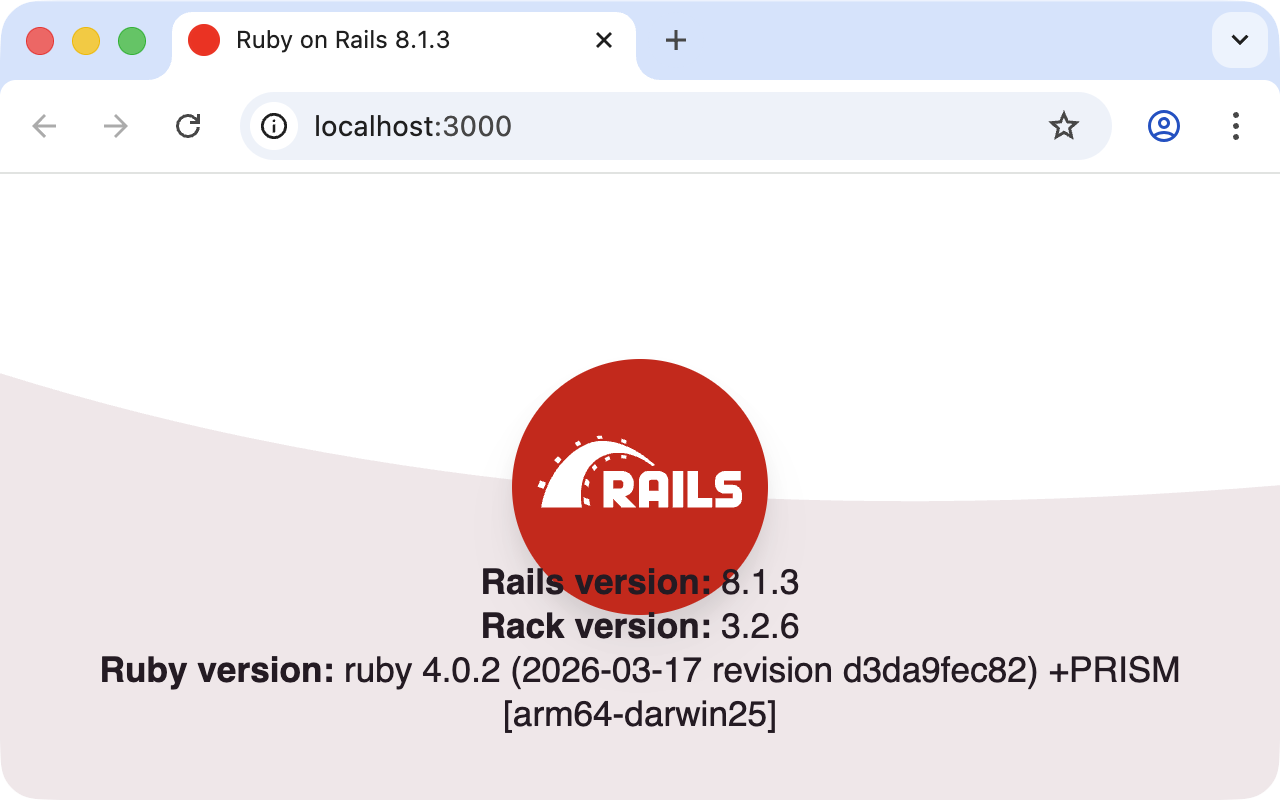
Looks good. Rails works fine.
With the key combination Ctrl+C you can stop the web
server.
|
Static Pages
There are certain static pages, images and icon files that are
automatically delivered by Rails. Remember part of the output of the
command rails new testproject:
[...]
create  public
create  public/400.html
create  public/404.html
create  public/406-unsupported-browser.html
create  public/422.html
create  public/500.html
create  public/icon.png
create  public/icon.svg
create  public/robots.txt
[...]
The directory name public and the files it contains already look
very much like static pages. Let’s have a go and create the file
public/hello-world.html with the following content:
<html>
<head>
  <title>Hello World!</title>
</head>
<body>
  <h1>Hello World!</h1>
  <p>An example page.</p>
</body>
</html>
Start the Rails web server with bin/rails server and have a look at
the new page at the URL http://localhost:3000/hello-world
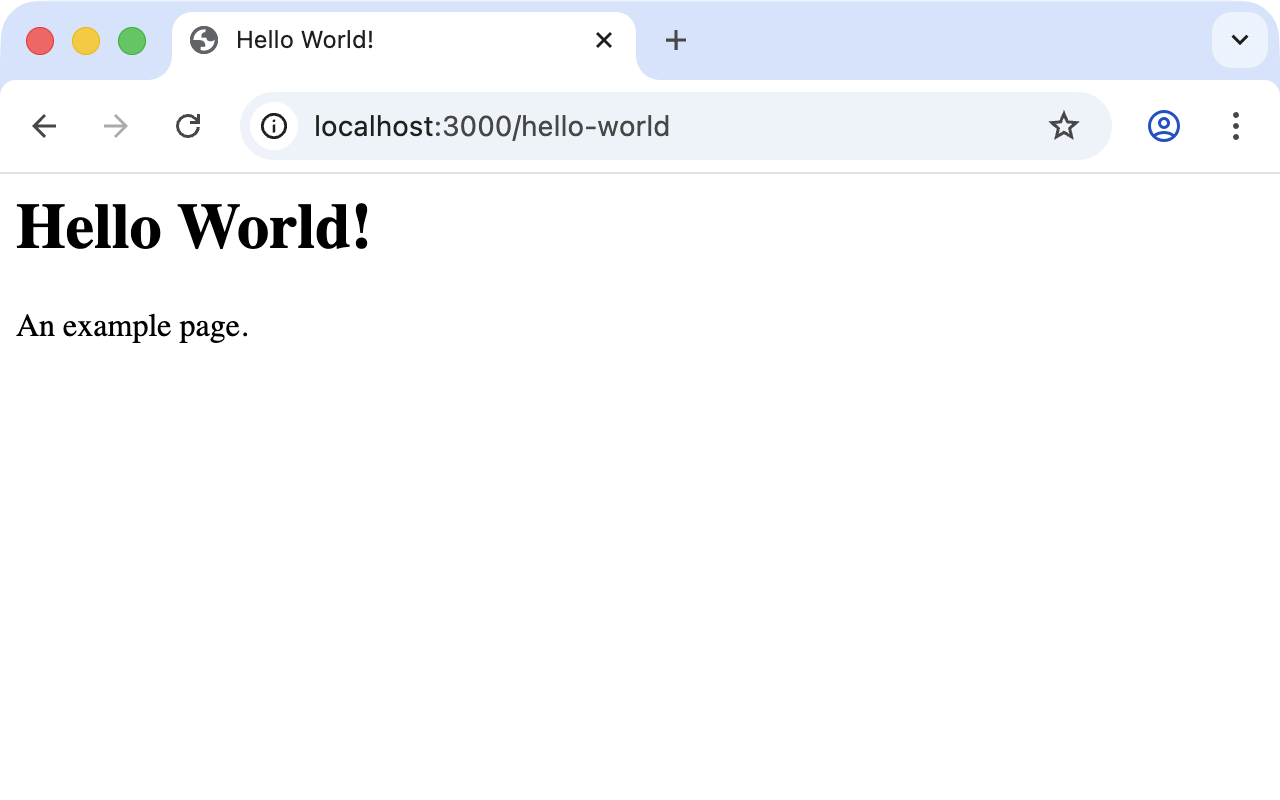
No output in the log means: this page was not handled by the Rails framework. It was delivered directly from the web server which is Puma in this case.
We can of course also use the URL
http://localhost:3000/hello-world.html. But Rails regards
HTML and therefore the file ending .html as standard output
format, so you can omit the .html here.
|
Now you know how you can integrate fully static pages in Rails. This
is useful for pages that never change and that you want to work even
if Rails is not currently working, for example because of an update.
In production, a reverse proxy (such as Thruster, Nginx or a CDN)
usually serves static files directly from public/ without ever
touching Ruby.
Creating HTML Dynamically with erb
The content of an erb file will probably seem familiar to you. It
is a mixture of HTML and Ruby code (erb stands for *e*mbedded
*R*uby). erb pages are rendered as Views. This is the first time
for us to get in touch with the MVC model. We need a controller to
use a view. That can be created via the generator rails generate
controller. Let’s have a look at the onboard help of this generator:
$ bin/rails generate controller
Usage:
  bin/rails generate controller NAME [action action] [options]
[...]

Description:
    Stubs out a new controller and its views. Pass the controller name, either
    CamelCased or under_scored, and a list of views as arguments.
[...]

Example:
    `bin/rails generate controller CreditCards open debit credit close`

    CreditCards controller with URLs like /credit_cards/debit.
        Controller: app/controllers/credit_cards_controller.rb
        Test:       test/controllers/credit_cards_controller_test.rb
        Views:      app/views/credit_cards/debit.html.erb [...]
        Helper:     app/helpers/credit_cards_helper.rb
Nice! We are kindly provided with an example further down. That
example doesn’t really fit our case but I am feeling brave and
suggest that we try bin/rails generate controller Example test:
$ bin/rails generate controller Example test
      create  app/controllers/example_controller.rb
       route  get "example/test"
      invoke  erb
      create    app/views/example
      create    app/views/example/test.html.erb
      invoke  test_unit
      create    test/controllers/example_controller_test.rb
      invoke  helper
      create    app/helpers/example_helper.rb
invoke test_unitPhew… that’s a few files being created. Amongst others, the file
app/views/example/test.html.erb. Let’s have a closer look at it:
<h1>Example#test</h1>
<p>Find me in app/views/example/test.html.erb</p>
It’s HTML, but for it to be a valid HTML page something is "missing"
at the top and bottom. The missing part can be found in the file
app/views/layouts/application.html.erb. We are going to have a look
at it later.
Please launch the web server to test it:
$ bin/rails serverand open the URL http://localhost:3000/example/test in the browser.
In the log file log/development.log we find lines such as:
Started GET "/example/test" for ::1 at 2026-04-19 10:42:15 +0200
Processing by ExampleController#test as HTML
  Rendering layout layouts/application.html.erb
  Rendering example/test.html.erb within layouts/application
  Rendered example/test.html.erb within layouts/application (Duration: 0.3ms)
  Rendered layout layouts/application.html.erb (Duration: 2.1ms)
Completed 200 OK in 7ms (Views: 3.0ms | ActiveRecord: 0.0ms)
An HTTP GET request for the URI /example/test. That was rendered as
HTML by the controller ExampleController using the method test.
Now we just need to find the controller. Good thing you bought this
book. ;-) All controllers are in the directory app/controllers, and
there you go, we indeed find the corresponding file
app/controllers/example_controller.rb.
$ ls app/controllers
application_controller.rb  concerns/  example_controller.rb
Please open the file app/controllers/example_controller.rb with your
favorite editor:
class ExampleController < ApplicationController
  def test
  end
end
That is very clear. The controller ExampleController is a descendant
of ApplicationController and contains currently just one method with
the name test. This method has no program logic (it’s empty).
You will probably ask yourself how Rails knows that for the URL path
/example/test it should process the controller ExampleController
and the method test. This is not determined by some magical logic,
but by a routing configuration. All routings can be listed with the
command bin/rails routes:
$ bin/rails routes
      Prefix Verb URI Pattern             Controller#Action
example_test GET  /example/test(.:format) example#test
[...]
Rails 8 prints a lot more built-in routes (health checks, Turbo
drive helpers, Action Mailbox ingresses, Active Storage etc.).
They are listed after our own routes. For now we only care
about the example_test line at the top.
|
These routes are configured in the file config/routes.rb which has
been auto-filled by the controller generator with a route to
example/test:
Rails.application.routes.draw do
  get "example/test"

  # Reveal health status on /up that returns 200 if the app boots with no exceptions, otherwise 500.
  get "up" => "rails/health#show", as: :rails_health_check

  # Defines the root path route ("/")
  # root "posts#index"
end
Later on we are going to dive more into Routes.
A static file in the directory public always has higher
priority than a route in config/routes.rb! So if we were
to save a static file public/example/test that file will
be delivered.
|
Programming in an erb File
erb pages can contain Ruby code. You can use it to program and give
these pages dynamic content.
Let’s start with something very simple: adding 1 and 1. First we try
out the code in irb:
$ irb
irb(main):001> 1 + 1
=> 2
irb(main):002> exit
That was easy.
If you want to output the result of Ruby code in erb,
enclose the code within <%= … %>.
|
We fill the erb file app/views/example/test.html.erb as follows:
<h1>First experiment with erb</h1>
<p>Addition:
  <%= 1 + 1 %>
</p>
Then use bin/rails server to launch the web server.
$ bin/rails serverVisit the page with the URL http://localhost:3000/example/test
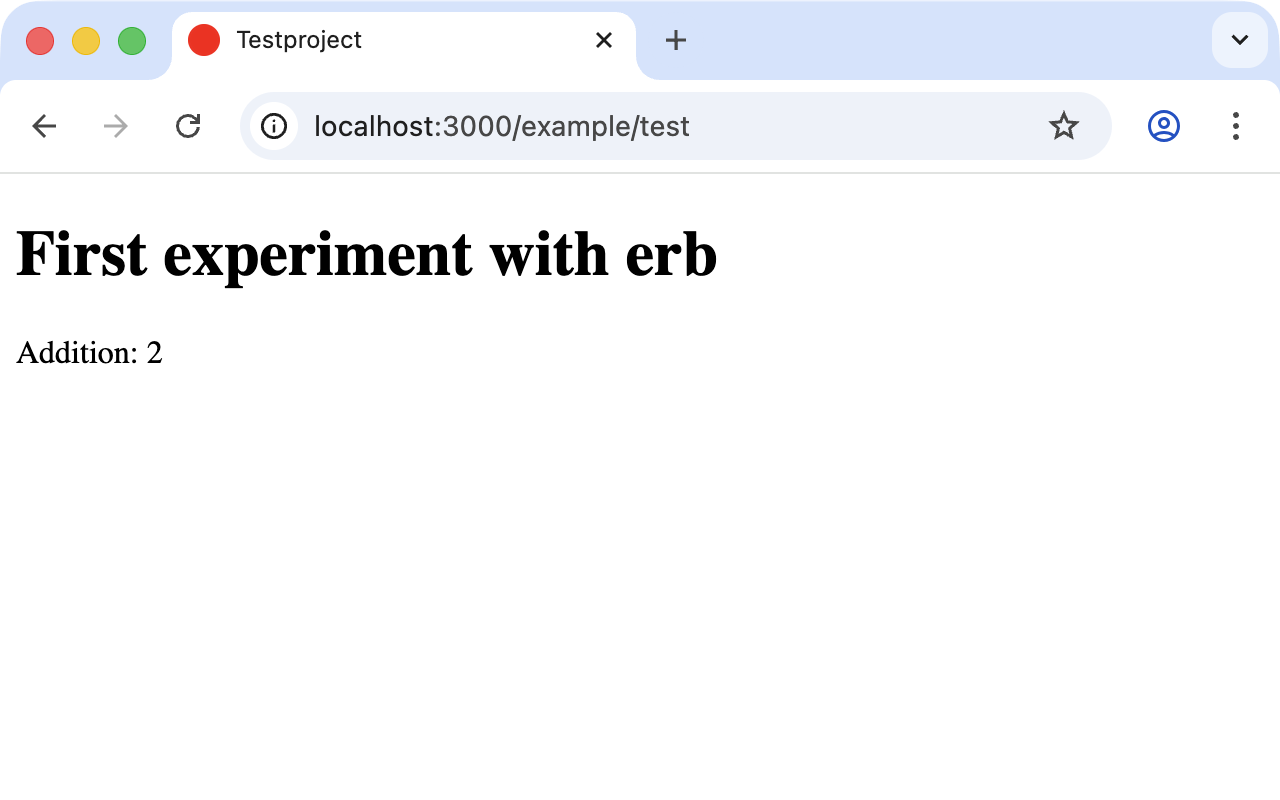
You may ask yourself: how can the result of adding two Integers be
displayed as a String? Let’s first look up in irb if it really is
an Integer:
$ irb
irb(main):001> 1.class
=> Integer
irb(main):002> (1 + 1).class
=> Integer
Yes, both the number 1 and the result of 1 + 1 are Integers. What
happened? Rails is intelligent enough to automatically call all
objects in a view (that is the file test.html.erb) that aren’t
already strings via the method .to_s, which always converts the
content of the object to a string. Once more a brief trip to irb:
irb(main):001> (1 + 1).to_s
=> "2"
irb(main):002> (1 + 1).to_s.class
=> String
irb(main):003> exit
You are now going to learn the finer points of erb step by step.
Don’t worry, it’s neither magic nor rocket science.
<% … %> vs. <%= … %>
In a .html.erb file there are two kinds of Ruby code instructions in
addition to the HTML elements:
-
<% … %>
Executes the Ruby code it contains but does not output anything (unless you explicitly use something like
printorputsin special ways). -
<%= … %>
Executes the Ruby code it contains and outputs the result as a String. If it’s not a String the method
to_swill be called.
The output of <%= … %> is automatically HTML-escaped.
So you don’t need to worry about "dangerous" HTML.
|
Let’s use an example. We use each to iterate through the Range
(0..5). Edit app/views/example/test.html.erb as follows:
<p>Loop from 0 to 5:
<% (0..5).each do |i| %>
  <%= "#{i}, " %>
<% end %>
</p>
Open this view in the browser:
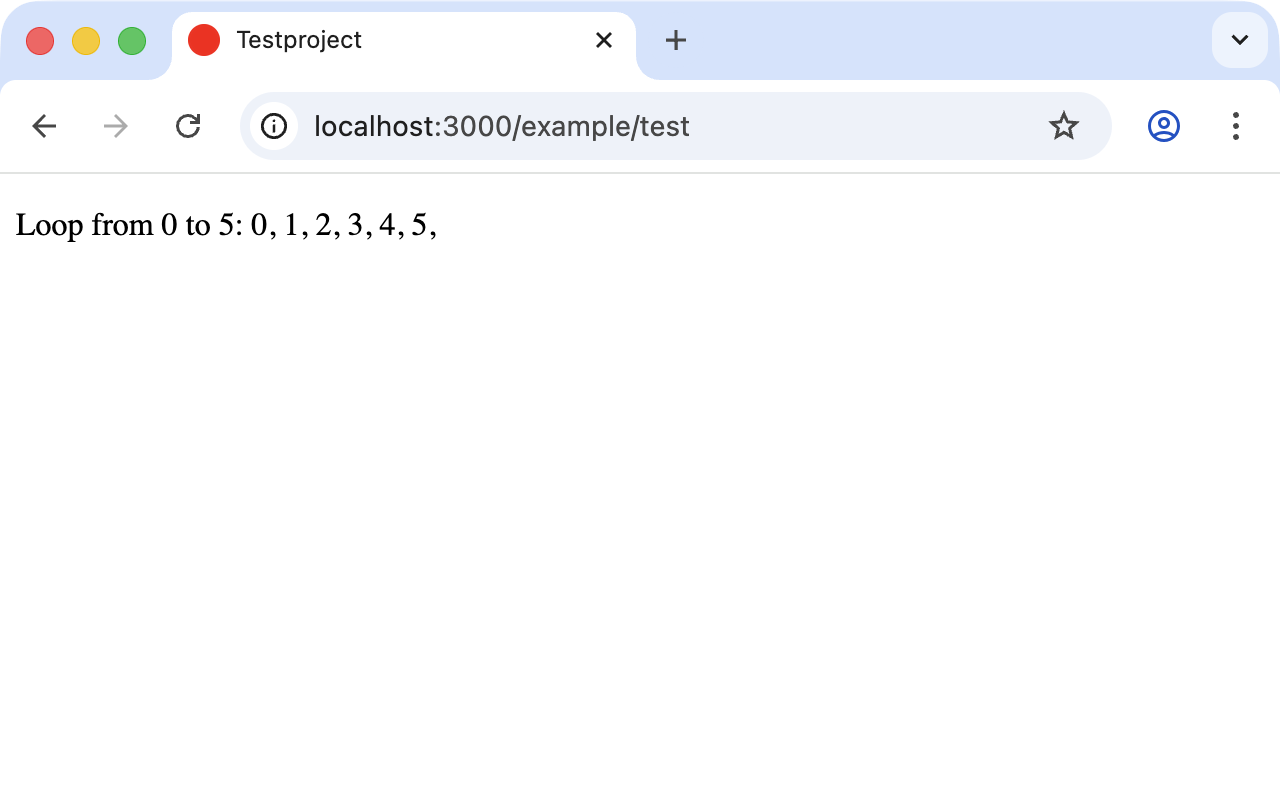
Let’s now have a look at the HTML source code in the browser:
<!DOCTYPE html>
<html>
  <head>
    <title>Testproject</title>
[...]
  </head>

  <body>
    <p>Loop from 0 to 5:
  0,
  1,
  2,
  3,
  4,
  5,
</p>

  </body>
</html>
Now you understand how Ruby code is used in the view.
Q & A
-
I don’t understand anything. I can’t cope with the Ruby code. Could you please explain it again?
Is it possible that you have not completely worked your way through Ruby Basics? Please do take your time with it and have another thorough look. Otherwise, the rest won’t make any sense here.
-
I can understand the Ruby code and the HTML output. But I don’t get why some HTML code was rendered around it if I didn’t even write that HTML code. Where does it come from, and can I influence it?
Excellent question! We will get to that in the next section.
Layouts
The erb file in the directory app/views/example/ only forms the
core of the later HTML page. By default an automatically generated
app/views/layouts/application.html.erb is always rendered around it.
Let’s have a closer look at it:
<!DOCTYPE html>
<html>
  <head>
    <title><%= content_for(:title) || "Testproject" %></title>
    <meta name="viewport" content="width=device-width,initial-scale=1">
    <meta name="apple-mobile-web-app-capable" content="yes">
    <%= csrf_meta_tags %>
    <%= csp_meta_tag %>

    <%= yield :head %>

    <link rel="icon" href="/icon.png" type="image/png">
    <link rel="icon" href="/icon.svg" type="image/svg+xml">
    <link rel="apple-touch-icon" href="/icon.png">

    <%# Includes all stylesheet files in app/assets/stylesheets %>
    <%= stylesheet_link_tag :app, "data-turbo-track": "reload" %>
    <%= javascript_importmap_tags %>
  </head>

  <body>
    <%= yield %>
  </body>
</html>
The interesting bit is the line
<%= yield %>With <%= yield %> the view file is inserted here. The lines with
the stylesheet tag, the javascript importmap tags, the CSRF meta tags
and the CSP meta tag can stay as they are for now. We’ll have a look
at the stylesheets and JavaScript in
Asset Pipeline. No need to
bother with that right now.
The file app/views/layouts/application.html.erb lets you set the
basic layout for the entire Rails application. If you want a
<hr> on every page with a header text above it, you can do this
between the <body> tag and <%= yield %>:
  <body>
    <h1>My Header</h1>
    <hr>
    <%= yield %>
  </body>
You can also create other layouts in the directory app/views/layouts/
and apply these layouts depending on the relevant situation. But let’s
leave it for now. The important thing is that you understand the basic
concept.
Passing Instance Variables from a Controller to a View
One of the cardinal sins in the MVC model is to put too much program
logic into the view. That’s more or less what used to be done
frequently in PHP programming in the past. I’m guilty of having done
it myself. But one of the aims of MVC is that any HTML designer can
create a view without having to worry about the programming. Yeah,
yeah, … if only it was always that easy. But let’s just play it
through in our minds: if I have a value in the controller that I want
to display in the view, then I need a mechanism for this. This is
referred to as instance variable and always starts with a @. If
you are not 100 % sure any more which variable has which scope, then
please have another quick look at
Scope of Variables.
In the following example we insert an instance variable for the
current time which we get by Time.now in the controller and then
insert it in the view. We’re taking programming intelligence from the
view to the controller.
The controller file app/controllers/example_controller.rb looks
like this:
class ExampleController < ApplicationController
  def test
    @current_time = Time.now
  end
end
In the view file app/views/example/test.html.erb we can then access
this instance variable:
<p>
The current time is
<%= @current_time %>
</p>
With the controller and the view we now have a clear separation of
programming logic and presentation logic. Now we can automatically
adjust the time in the controller in accordance with the user’s time
zone without the designer of the page having to worry about it. As
always the method to_s is automatically applied in the view.
I am well aware that no-one will now jump up from their chair and shout: "Thank you for enlightening me! From now on I will only program neatly in accordance with MVC." The above example is just the first small step in the right direction and shows how we can easily get values from the controller to the view with instance variables.
Partials
Even with small web projects there are often elements that appear
repeatedly, for example a footer on the page with contact info or a
menu. Rails gives us the option of encapsulating this HTML code in
form of partials and then integrating them within a view. A partial
is also stored in the directory structure under app/views/. But
its file name must start with an underscore (_).
As an example we now add a mini footer to our page in a separate
partial. Copy the following content into the new file
app/views/example/_footer.html.erb:
<hr>
<p>
  Copyright 2009 - <%= Date.today.year %> the Easter Bunny.
</p>
Yes, this is not the MVC way of doing it right. Date.today.year
should be defined in the controller. I’m glad that you
caught this mistake.
|
We edit the file app/views/example/test.html.erb as follows and
insert the partial via the command render:
<p>Loop from 0 to 5:
<% (0..5).each do |i| %>
  <%= "#{i}, " %>
<% end %>
</p>

<%= render "footer" %>
So now we have the following files in the directory app/views/example:
$ ls app/views/example
_footer.html.erb  test.html.erb
The new web page now looks like this:
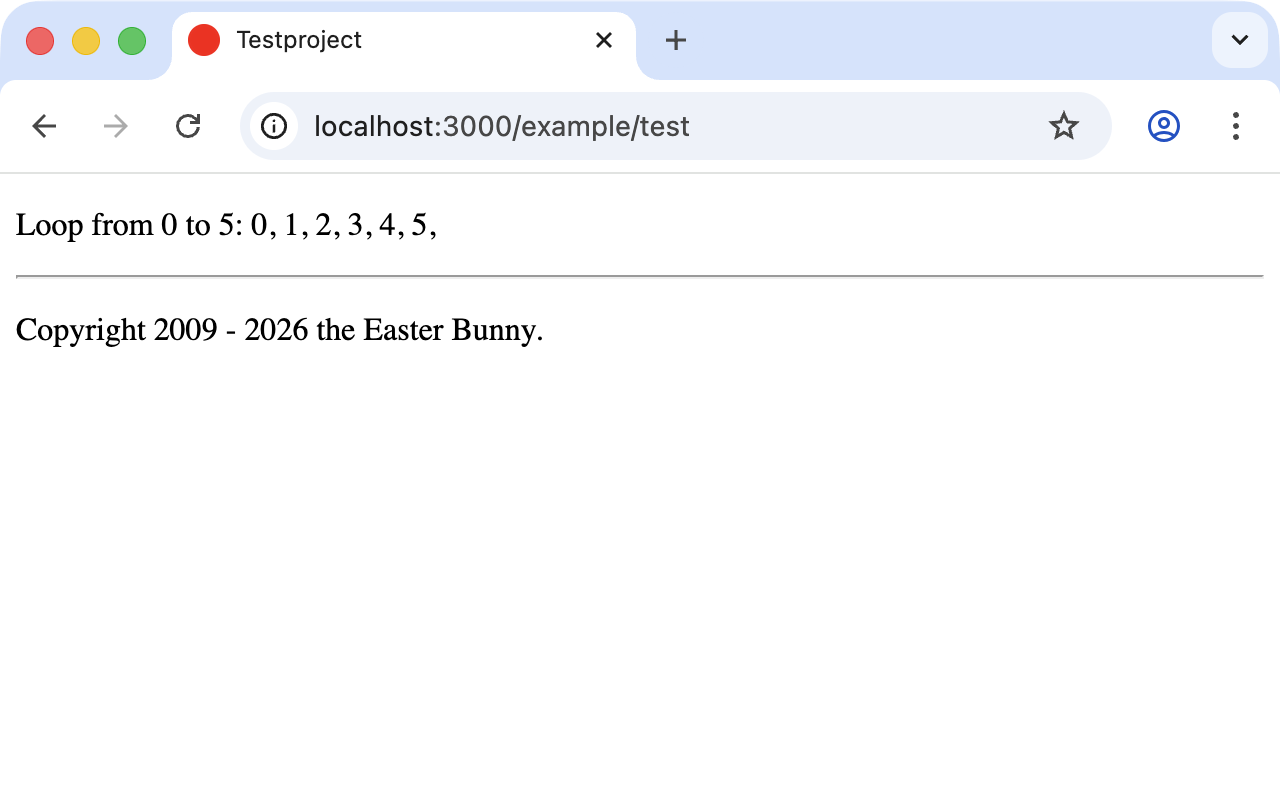
The name of a partial in the code is always specified
without the preceding underscore (_) and
without the file extensions .erb or .html. But
the actual file must have the underscore at the
beginning of the file name and end with the file
extensions .html.erb.
|
Partials can also be integrated from other areas of app/views. For
example, you can create a directory app/views/shared for recurring
and shared content and create a file _footer.html.erb in this
directory. You would then integrate this file into the erb code via
the line
<%= render "shared/footer" %>Passing Variables to a Partial
Partials are great in the sense of the DRY (*D*on’t *R*epeat
*Y*ourself) concept. But what makes them really useful is the option
of passing variables. Let’s stick with the copyright example. If we
want to pass the start year as a value we can integrate this by
changing app/views/example/_footer.html.erb:
<hr>
<p>
Copyright <%= start_year %> - <%= Date.today.year %> the Easter Bunny.
</p>
So let’s change the file app/views/example/test.html.erb as follows:
<p>Loop from 0 to 5:
<% (0..5).each do |i| %>
  <%= "#{i}, " %>
<% end %>
</p>

<%= render partial: "footer", locals: {start_year: "2000"} %>
If we now go to the URL http://localhost:3000/example/test we see the 2000:
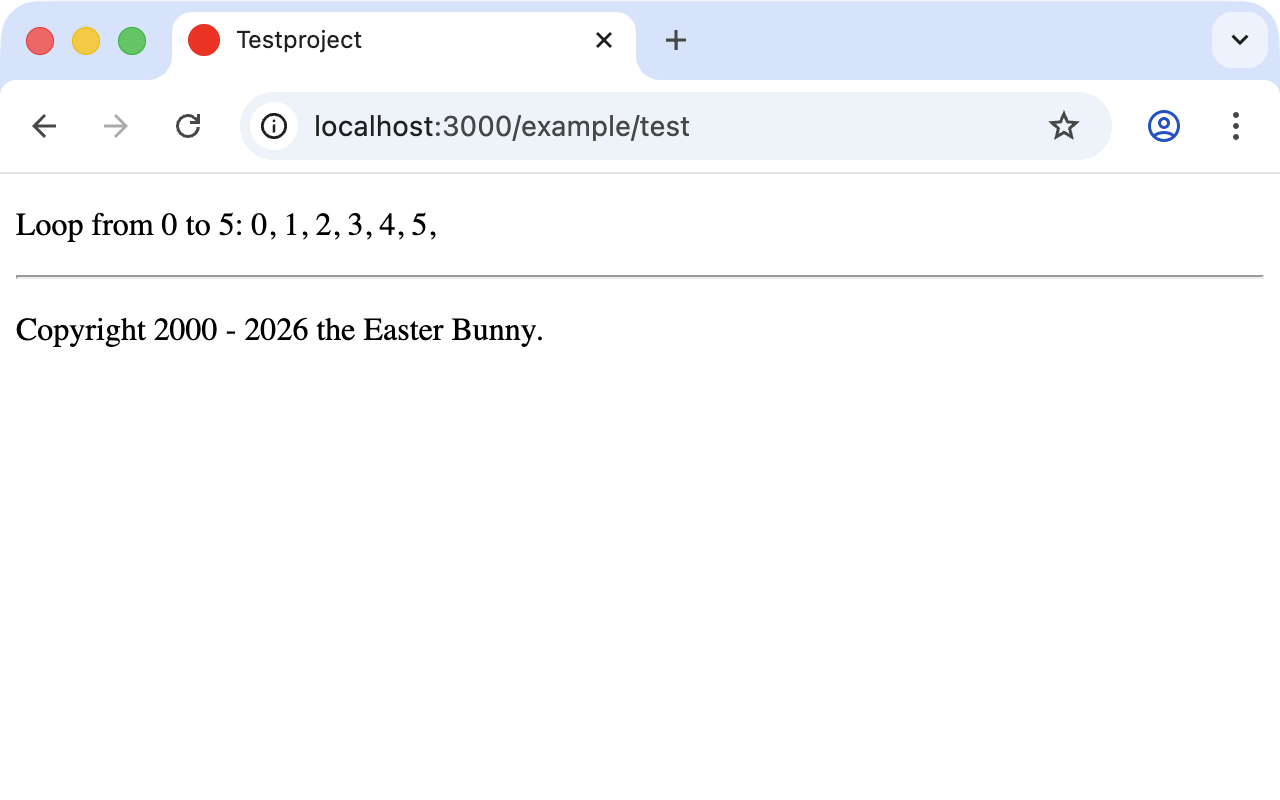
Sometimes you need a partial that uses a local variable and somewhere else you may need the same partial but without the local variable. We can take care of this in the partial itself with an if statement:
<hr>
<p>
  Copyright
  <%= "#{start_year} - " if defined? start_year %>
  <%= Date.today.year %>
  the Easter Bunny.
</p>
defined? can be used to check if an expression has been
defined.
|
Now you can call this partial with
<%= render partial: "footer", locals: {start_year: "2000"} %> and
with <%= render "footer" %>.
Further Documentation on Partials
We have really only barely scratched the surface here. Partials are very powerful tools. You can find the official Ruby on Rails documentation on partials at https://guides.rubyonrails.org/layouts_and_rendering.html#using-partials
The Rails Console
The console in Rails is nothing more than an irb (see
section "irb") built around the Rails
environment. The console is very useful both for developing and for
administration purposes because the whole Rails environment is
represented and available.
I’ll show you how to work with it in this example application:
$ rails new pingpong
  [...]
$ cd pingpong
$ bin/rails db:prepare
$ bin/rails generate controller Game ping pong
  [...]
$
Start the Rails console with the command bin/rails console:
$ bin/rails console
Loading development environment (Rails 8.1.3)
irb(main):001>
And you can use exit to get back out:
irb(main):001> exit
$
In the console you have access to all variables that are also available later in the proper application:
$ bin/rails console
Loading development environment (Rails 8.1.3)
irb(main):001> Rails.env
=> "development"
irb(main):002> Rails.root
=> #<Pathname:/Users/stefan/pingpong>
irb(main):003> exit
$
In chapter "ActiveRecord" we are going to be working lots with the console and will soon begin to appreciate the debugging possibilities it offers.
| One of my best buddies when developing Rails applications is the Tab key. Whenever you are looking for a method for a particular problem, recreate it in the Rails console and then press the Tab key twice to list all available methods. The names of the methods are usually self-explanatory. |
app
app is useful if you want to analyze things to do with routing:
$ bin/rails console
Loading development environment (Rails 8.1.3)
irb(main):001> app.url_for(controller: "game", action: "ping")
=> "http://www.example.com/game/ping"
irb(main):002> app.get "/game/ping"
Started GET "/game/ping" for 127.0.0.1 at 2026-04-19 11:02:50 +0200
Processing by GameController#ping as */*
  Rendering layout layouts/application.html.erb
  Rendering game/ping.html.erb within layouts/application
  Rendered game/ping.html.erb within layouts/application
  Rendered layout layouts/application.html.erb
Completed 200 OK in 8ms (Views: 2.3ms | ActiveRecord: 0.0ms)

=> 200
irb(main):003> exit
What is a Generator?
We have already used the command rails generate controller. It
starts the generator with the name controller. There are other
generators as well. You can use the command bin/rails generate to
display a list of available generators:
$ bin/rails generate
Usage: bin/rails generate GENERATOR [args] [options]
[...]

Please choose a generator below.

Rails:
  application_record
  authentication
  benchmark
  channel
  controller
  generator
  helper
  integration_test
  jbuilder
  job
  mailbox
  mailer
  migration
  model
  resource
  scaffold
  scaffold_controller
  script
  system_test
  task

ActiveRecord:
  active_record:application_record
  active_record:multi_db

SolidCable:
  solid_cable:install

[...]
What does a generator do? A generator makes a programmer’s job easier by doing some of the mindless tasks for you. It creates files and fills them with default code, depending on the parameters passed. You could do the same manually without the generator. So you do not have to use a generator. It is primarily intended to save you work and avoid potential errors that can easily arise from mindless repetitive tasks.
Rails 8 ships with a new-ish authentication generator. It
scaffolds a complete, production-worthy email/password login
flow in a few seconds. We cover it in
Authentication.
|
| Someday you might want to create your own generator. Have a look at https://guides.rubyonrails.org/generators.html to find a description of how to do that. |
Helper
A helper method takes care of recurring tasks in a view. For example,
if you want to display stars (*) for rating a restaurant and not a
number from 1 to 5, you can define the following helper in the file
app/helpers/application_helper.rb:
module ApplicationHelper
  def render_stars(value)
    output = ""
    output << "*" * value if (1..5).include?(value)
    output
  end
end
With this helper we can then use the following code in a view:
<p>
  <b>Rating:</b> <%= render_stars(5) %>
</p>
You can also try out the helper in the console:
$ bin/rails console
Loading development environment (Rails 8.1.3)
irb(main):001> helper.render_stars(5)
=> "*****"
irb(main):002> helper.render_stars(3)
=> "***"
irb(main):003> exit
There are lots of predefined helpers in Rails and we will use some of
them in the next chapters. But you can also define your own custom
helpers. Any of the helpers from the file
app/helpers/application_helper.rb can be used in any view.
All helpers live in the directory app/helpers/.
Older Rails versions generated a dedicated helper file per
controller (app/helpers/example_helper.rb for the Example
controller, and so on). Rails 8 still creates those files but
the default behavior is that every helper is available in every
view. If you want the old "one helper per controller" scoping
you can set config.action_controller.include_all_helpers =
false in config/application.rb.
|
Debugging
Rails provides a couple of debug tools to make the developer’s life easier.
debug
In any view you can use the debug helper to render an object in
YAML format inside a <pre> tag. To display the value of @foo you
can use the following line in your view:
<%= debug @foo %>Web Console
The web-console gem renders a Rails console right inside your
browser. So when you navigate to a specific URL you get a console at
the bottom of that page. It is enabled by default in development
(have a look at group :development in your Gemfile) and disabled in
production.
Let me show you this by example with a simple rails application:
$ rails new testapp
  [...]
$ cd testapp
$ bin/rails db:prepare
$ bin/rails generate controller Page index
In app/controllers/page_controller.rb we add the following code:
class PageController < ApplicationController
  def index
    @foo = "bar"
  end
end
And in the view app/views/page/index.html.erb we add the console
command:
<h1>Page#index</h1>
<p>Find me in app/views/page/index.html.erb</p>

<% console %>
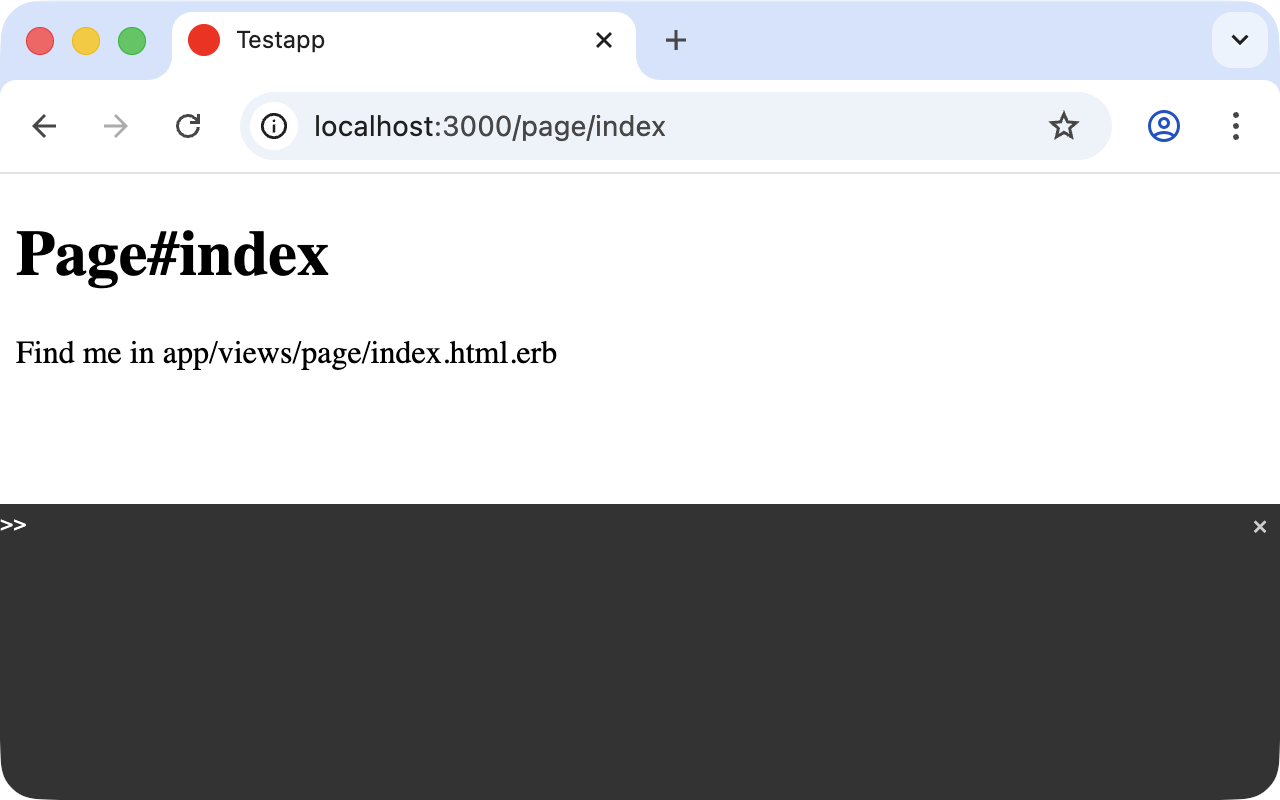
After starting the Rails application with bin/rails server and
browsing to http://localhost:3000/page/index we get a web console at
the bottom of the page. In it we have access to the instance variable
@foo.
Rails 5.2 introduced strict Content Security Policy (CSP)
defaults, and historically the web console wouldn’t render
unless you loosened them. Since Rails 7 the generated
config/initializers/content_security_policy.rb is commented
out by default, so in a fresh Rails 8 app the web console
works out of the box and you only need to configure CSP when
you actually want to enable it.
|
Other Debugging Tools
There are a couple of other built-in debugging tools which are out of
the scope of this introduction. Please have a look at
https://guides.rubyonrails.org/debugging_rails_applications.html to
get an overview. The debug gem (the successor of byebug on modern
Ruby) lets you set debugger anywhere in Ruby code to drop into a
REPL on the running request.
Rails Lingo
Here you find a couple of words which you’ll often find in the Ruby on Rails universe.
DRY - Don’t repeat yourself
Many Rails programmers are big fans of DRY. DRY means purely and simply that you should try to place repeated programming logic into separate methods.
Refactoring
You often hear the word refactoring in the context of DRY. This involves functioning applications that are further improved. The application in itself remains unchanged in its interface. But its core is optimized, amongst others through DRY.
Convention Over Configuration
Convention over configuration (also known as coding by convention, see https://en.wikipedia.org/wiki/Convention_over_configuration) is an important pillar of a Rails application. It states that the programmer does not need to decide in favour of certain features when starting a project and set these via configuration parameters. It specifies an underlying basic consensus and this is set by default. But if you want to work outside of this conventional basic consensus then you will need to change the corresponding parameters.
Model View Controller Architecture (MVC)
You have now already created a simple Rails application and in the next chapter you will dive deeply into the topic ActiveRecord. So now is a good time to briefly introduce a few terms that often surface in the world of Rails.
According to Wikipedia MVC is a design pattern that separates the representation of information from the user’s interaction with it.
MVC is a structure for software development. It was agreed that it makes sense to have one part of the software in one place and another part of the software in another place. Nothing more, nothing less.
This agreement has the enormous advantage that once you are used to this concept you know exactly where you can find or need to integrate a certain functionality in a Rails project.
Model
"Model" in this case means data model. By default Rails applications use an ActiveRecord data model (see chapter "ActiveRecord").
All models can be found in the directory app/models/.
View
The "view" is responsible for the presentation of the application. It takes care of rendering the web page, an XML or JSON response. A view could also render a PDF or an ASCII text. It depends entirely on your application.
You will find all the views in the directory app/views/.
Controller
Once a web page call has ended up in a route (see chapter "Routes") it goes from there to the controller. The route specifies a certain method (action) as target. This method can then fulfill the desired tasks (such as finding a specific set of data and saving it in an instance variable) and then renders the desired view.
All controllers can be found in the directory app/controllers/.
Abbreviations
There are a handful of abbreviations that make your life as a developer much easier. In the rest of this book I have always used the full version of these commands to make it clearer for beginners, but in practice you will soon find that the abbreviations are easier to use.
-
bin/rails consoleShorthand notation:
bin/rails c -
bin/rails serverShorthand notation:
bin/rails s -
bin/rails generate scaffoldShorthand notation:
bin/rails g scaffold